Product Roles Security Pricing FAQ Sign In
Every feature below is live in production

Every feature, in depth.

FleetPRO runs the whole job — from the estimate that wins the work, to the crew checking off vehicles on site, to the branded report and invoice in your customer’s inbox, to the payment in your account. Here’s all of it.

01The Crew App

Work Mode

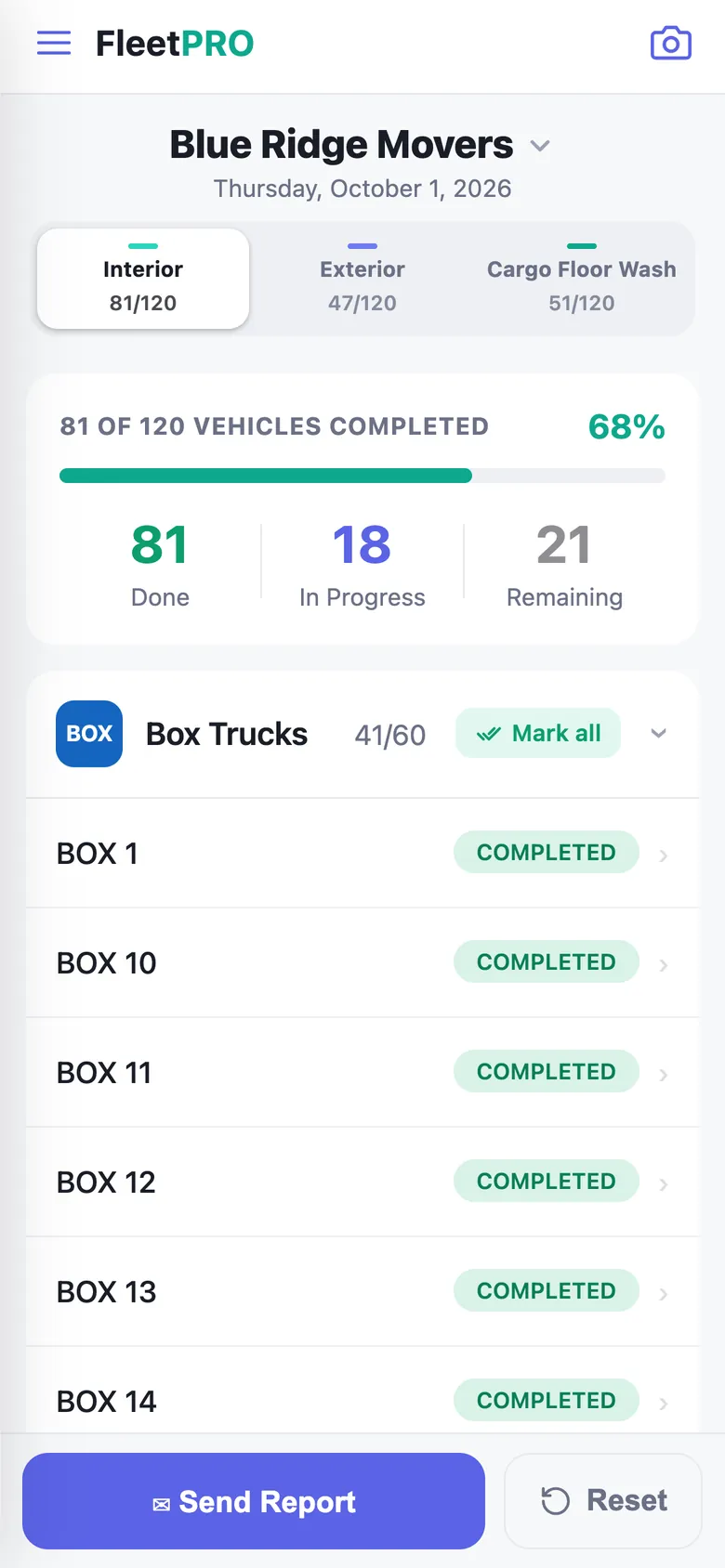
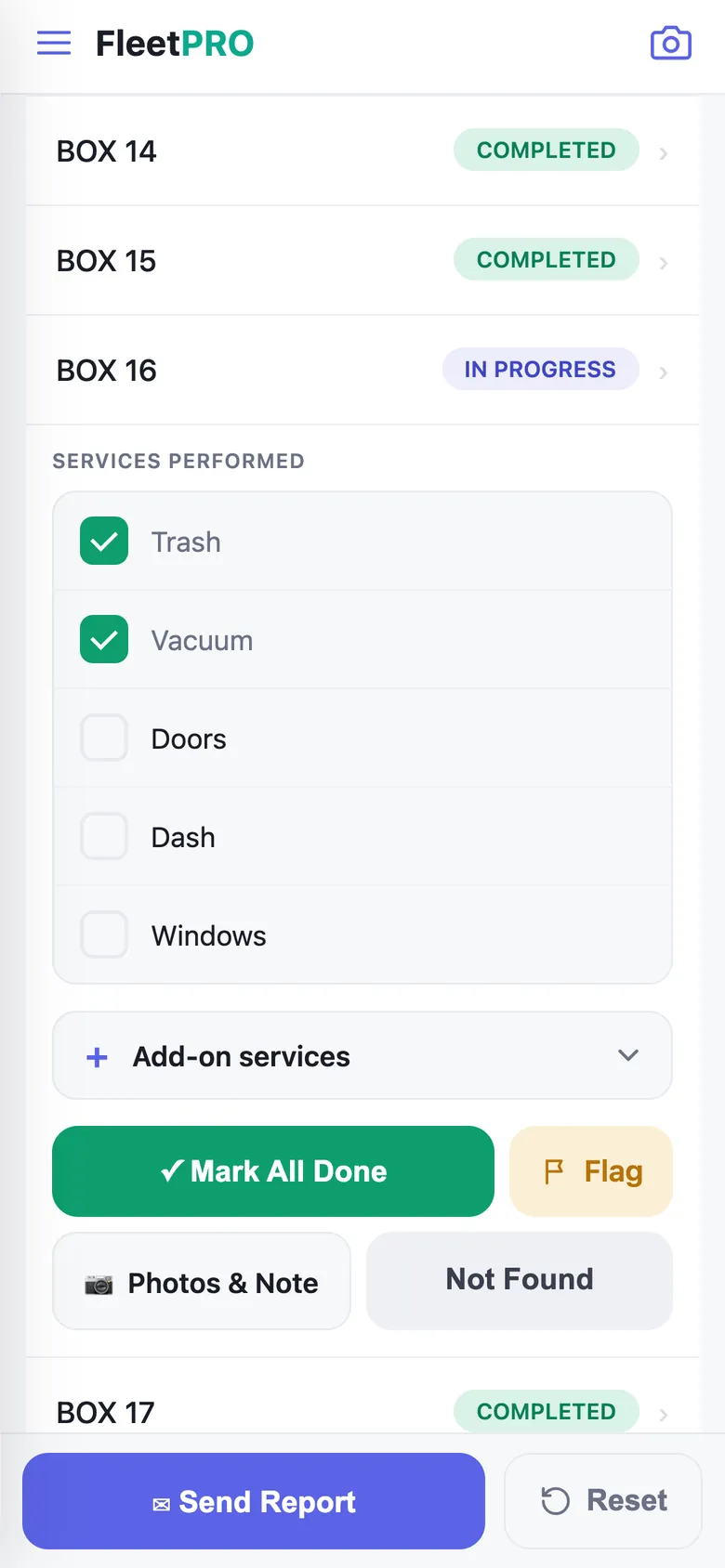
Where the work actually gets recorded. A crew member opens the app on their phone, sees the vehicles at the site they’re standing in, and checks them off.

The vehicle list

  • Grouped by vehicle type — vehicles bucket automatically by their ID prefix (step vans, cargo vans, EDVs, whatever you define), each group with its own progress count and Mark All Done
  • Live progress — a running completion bar for the site and per-group counts like “7/9”, so the crew always knows what’s left
  • Not Found marks a vehicle that isn’t on the lot — with undo — so a missing truck doesn’t silently drag your completion rate down
  • Completed banner with undo — a finished vehicle collapses to a green “Completed on…” banner, reversible in one tap without touching other services

Per-service checklists STARTER+

  • Unlimited service types you define — Interior, Exterior, Cargo Floor Wash, Driver Mat Decon, or anything you invent — each with its own task list
  • Independent tracking per vehicle — a van can be 10/10 on Interior and 3/10 on Exterior at the same time; switching services never overwrites the other’s progress
  • Service switcher in the header — tap a pill to flip the same vehicles to a different checklist
  • Per-group applicability — mark which vehicle groups don’t get a service (EDVs skip the cargo floor wash) and they drop out of the counts, report, and invoice automatically
  • Checklist-free services — some jobs are just done-or-not-done, and they mark complete with a single tap

Photos, scanning & add-ons

  • Photos per vehicle straight from the camera, plus a free-text note — both flow into the customer’s report, and you pick which ones
  • Before / After composer — pair two shots into a single side-by-side image, captioned with the vehicle name
  • Unit ID scanning — point the camera at the number painted on the truck and it jumps straight to that vehicle; QR scanning with a live mode switcher, flashlight in both, manual entry fallback, and a QR generator for printing your own tags
  • Add-on services — extras like engine degrease or tire shine live in an org-wide catalog; the crew ticks what they performed per vehicle and it carries to the invoice

Sending the report

  • Send with or without an invoice — “Send with Invoice” opens the builder pre-filled from the completed work
  • One report per service, or just the one you’re on — your choice when a site ran both Interior and Exterior
  • Crew submit for review — crew don’t email customers directly; reports queue for an admin to review and send, so nothing goes out unchecked
  • Reset for the next cycle — reset just the service you ran, or all of them, without touching the photos
Work Mode — grouped vehicle checklist with live progress

Crew logins get Work Mode, their schedule, their timecard, and settings — no pricing, no invoices, no other customers’ revenue.

02Analytics

Dashboard

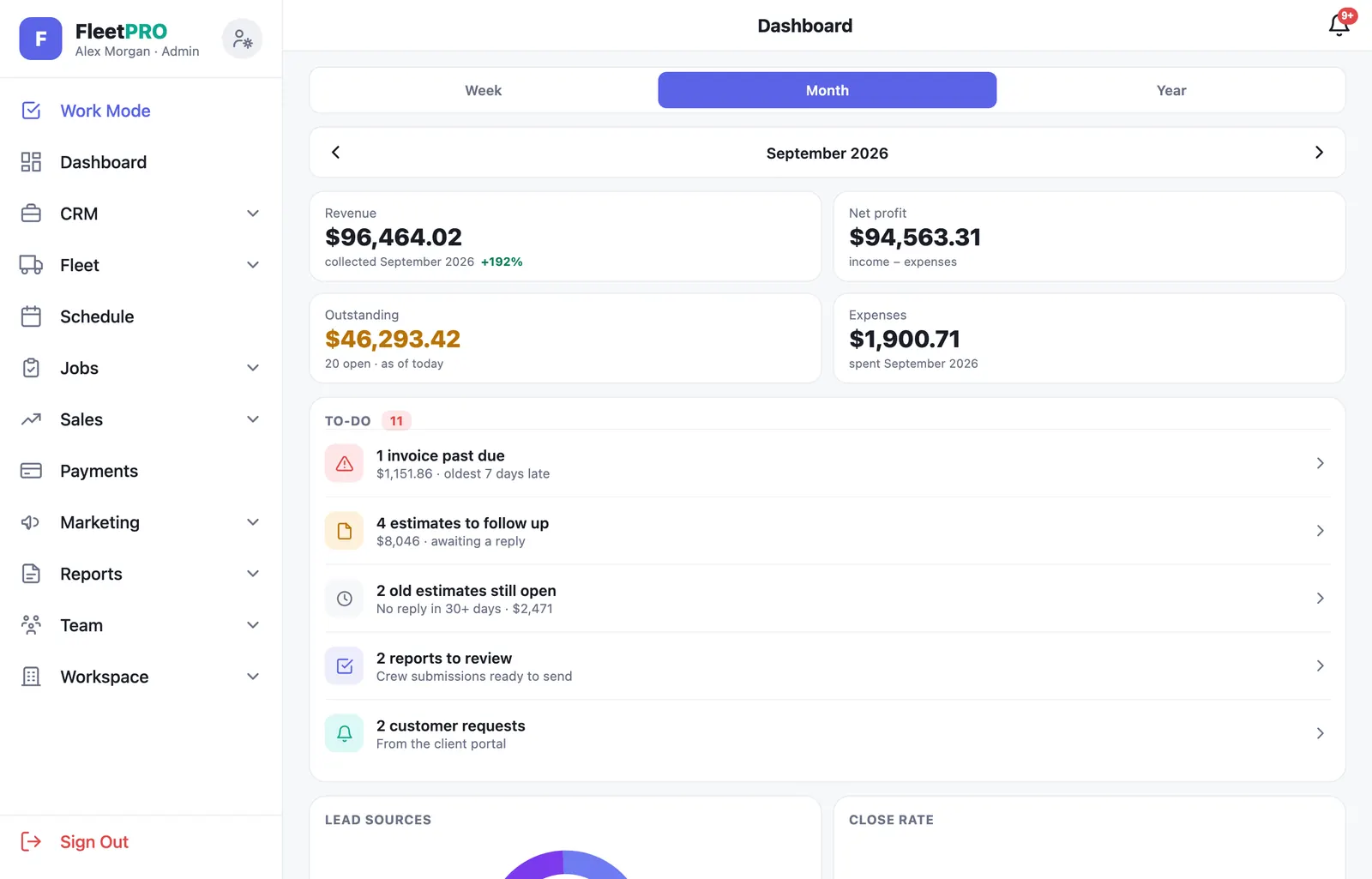
The business at a glance, with real numbers pulled from your invoices, expenses, and completed work — not manual entry.

Money PRO+

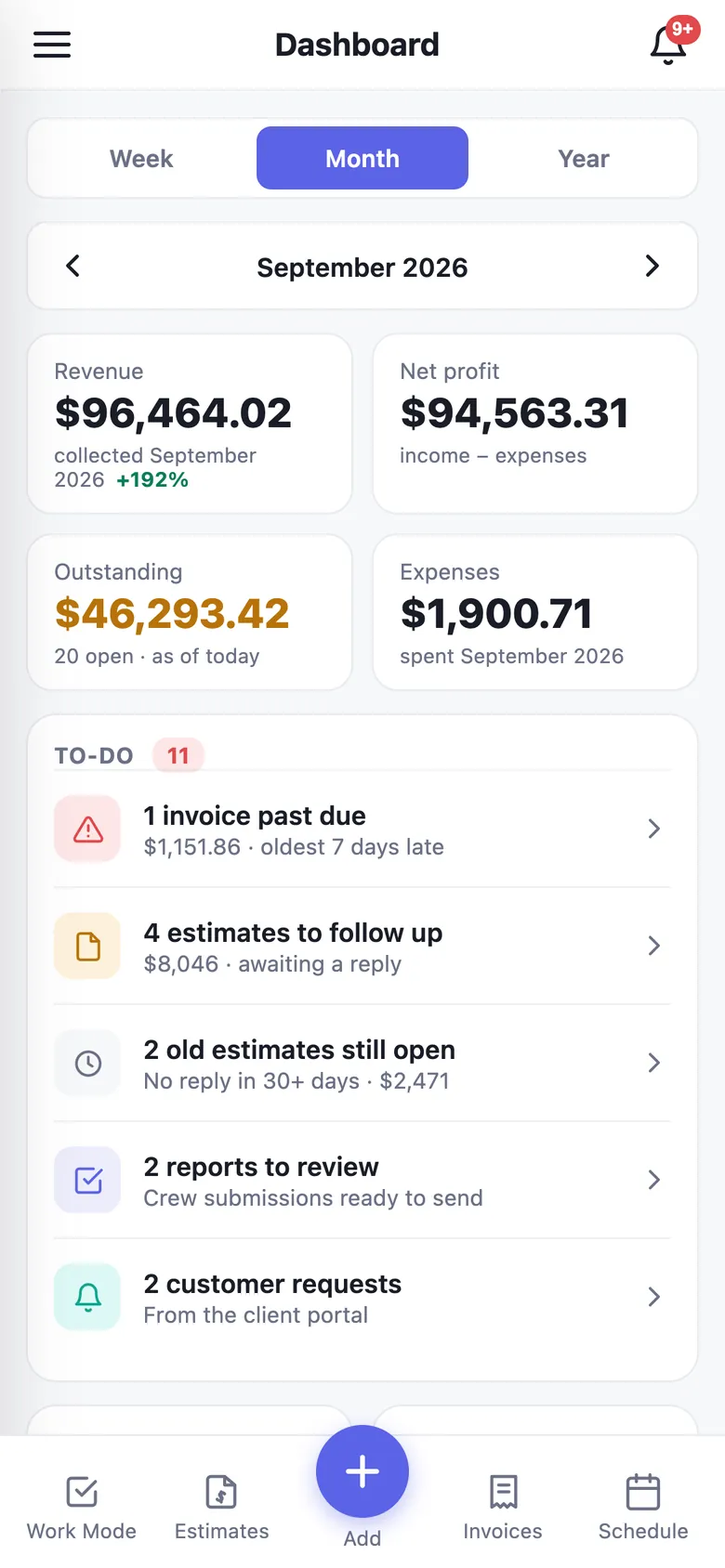
  • Four headline cards — Revenue collected, Net profit, Outstanding receivables, and Expenses — each with a percentage change against the prior period
  • Period navigation — Week / Month / Year with arrows to step back through months or prior years; the current year shows year-to-date
  • Revenue trend — collected revenue as bars against billed revenue as a line, so you can see the gap between what you billed and what you got
  • Revenue by line — how much of your money comes from fleet routes vs. one-off service work, and Work completed — vehicles washed and jobs finished, with average ticket

Income & expenses

  • Expense tracking built in — add an expense in two taps from the quick-add button, categorize it, and it flows into net profit
  • “Where it goes” — a category breakdown of spending for the period, plus a recent expense log
  • Receivables aging — Net-30 buckets (Current, 31–60, 60+) so you know what’s slipping before it becomes a problem

The all-time graph grid & To-Do

  • Lead Sources — where your customers actually came from (Google, Facebook, referral, print, or channels you define), by count and percentage
  • Close Rate — estimates accepted vs. declined with the percentage in the middle, plus Top Services and all-time Revenue by Line
  • To-Do, auto-surfaced from live data — overdue invoices, estimates awaiting a reply, crew reports waiting for review, and unhandled customer requests, each tapping straight through to the screen that fixes it
  • Today & Up Next — today’s fleet routes with live wash progress, alongside today’s service appointments
usefleetpro.app — Dashboard
FleetPRO dashboard — revenue, net profit, to-do, lead sources, close rate
03CRM

Customers & Pricing

One customer list for fleet accounts and one-off service customers, with the contact detail, pricing, and paperwork attached to each.

The customer list

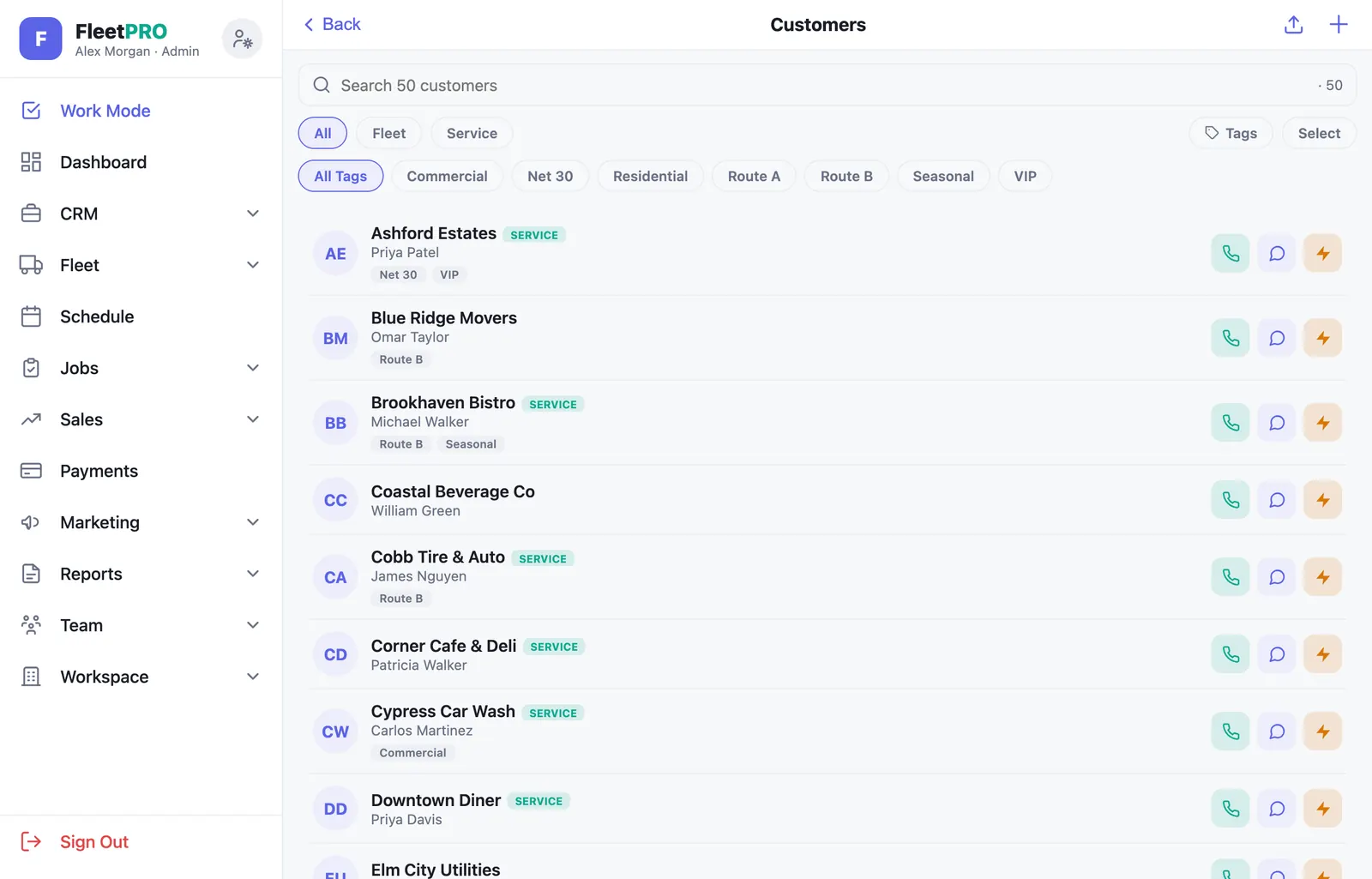
  • Search everything — name, company, owner, manager emails, phone, address, tags — with a live count and Fleet / Service / All filters
  • Call and Text buttons on every row, straight to the phone’s dialer or messages
  • Quick Actions — new estimate, new invoice, or schedule a job with the customer already selected
  • Select mode & tag manager — bulk delete, tag, or export to CSV; create, rename, or delete a tag across every customer at once
  • Lead source, required on every new customer — so your attribution data is never full of holes

Two kinds of customer

Type
What it’s for
Fleet client
A company with a fleet you service on a route. Vehicles, per-service checklists, wash cycles, fleet managers who get the reports, and per-vehicle-group pricing.
Service customer
A one-off or recurring job with no fleet to track — residential or commercial. Owner contact, service address with a map pin, and notes (gate code, pets, parking).

Contact records

  • Owner + fleet managers — a repeatable manager list whose emails automatically become the CC list on completion reports
  • Job-site location — type an address and it autocompletes; the pin drops on a real map you can drag to the exact spot. That pin is what the crew’s timecard geofence uses

Pricing — two tabs, two ways to price

  • Price Book — your org-wide catalog of services (sq ft, linear ft, or flat) and packages (a flat price with an “includes” list). Search, drag to reorder, export to CSV. New accounts start seeded with eight common exterior-cleaning services
  • Fleet Rates — per-customer, per-vehicle-group pricing: one card per vehicle group, one price field per service that applies to it
  • Both feed the builders — a “From price book” button in the estimate and invoice editors fills a line at the right price and description, plus per-customer add-on pricing

Agreements & documents

  • Service Agreements — a reusable folder of agreement PDFs. Upload once, attach to any estimate, and the customer sees it on their quote before they sign
  • Documents & e-signature BUSINESS — send a contract to a public link, no login required; drawn or typed signature recorded with a timestamp, content hash, and audit trail
usefleetpro.app — Customers
Customers CRM — search, filters, tags, call/text quick actions
usefleetpro.app — Price Book
Price Book — services and packages with unit types
04Fleet

Fleet Management

Vehicles, vehicle groups, service checklists, and a photo archive that never forgets.

Vehicles

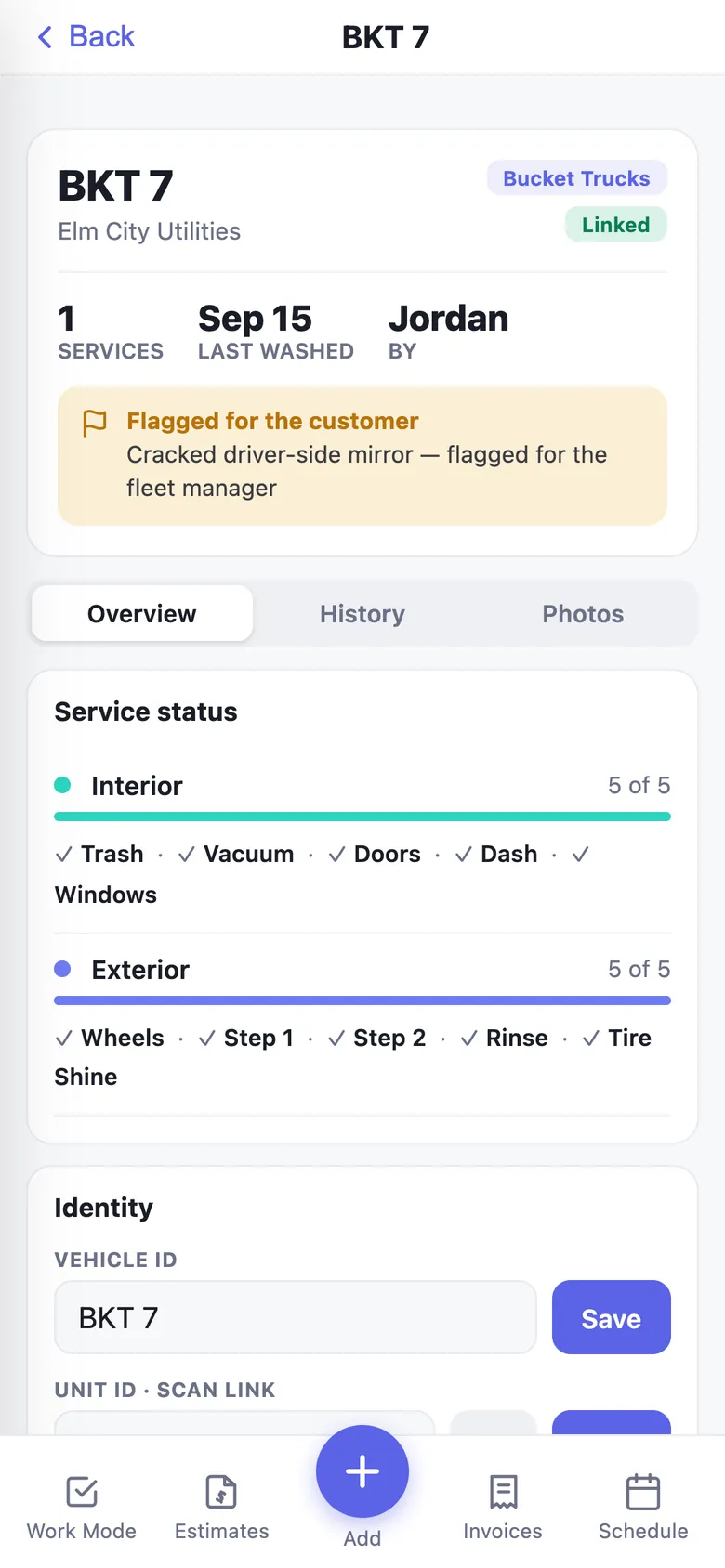
  • Per-customer vehicle lists with rename and delete, and a count of how many are scan-linked
  • Two separate IDs per vehicle — the Unit ID (the number painted on the truck, what the scanner matches) and the real 17-character VIN. They’re different things and FleetPRO treats them that way
  • Bulk import — paste from a spreadsheet or upload a CSV, auto-map the columns, preview, and import. Handles thousands of vehicles in batches with a live progress bar, de-duplicating as it goes

Vehicle Settings STARTER+

  • Define your own vehicle groups — an ID prefix, a badge tag, a display name, and a color, with a catch-all for everything else. These groups drive Work Mode grouping, per-group pricing cards, and per-service applicability rules

Fleet Services

  • Your service types and their checklists — add a service, rename it, drag its tasks into the right order, drag whole services to reorder. Renaming never breaks historical data
  • Add-on services and their default prices live here too

Photo Archive

  • Every photo your crews have ever taken, browsable by customer and vehicle, even after the vehicle list has been reset for the next cycle
  • Copied to a write-protected second location the moment they’re saved — the app can add to it and read from it, but nothing in the app can delete from it
usefleetpro.app — Fleet Services
Fleet Services — custom service checklists with drag-to-reorder tasks
05Scheduling

Schedule

Fleet routes and one-off service jobs on the same calendar, with three ways to look at it.

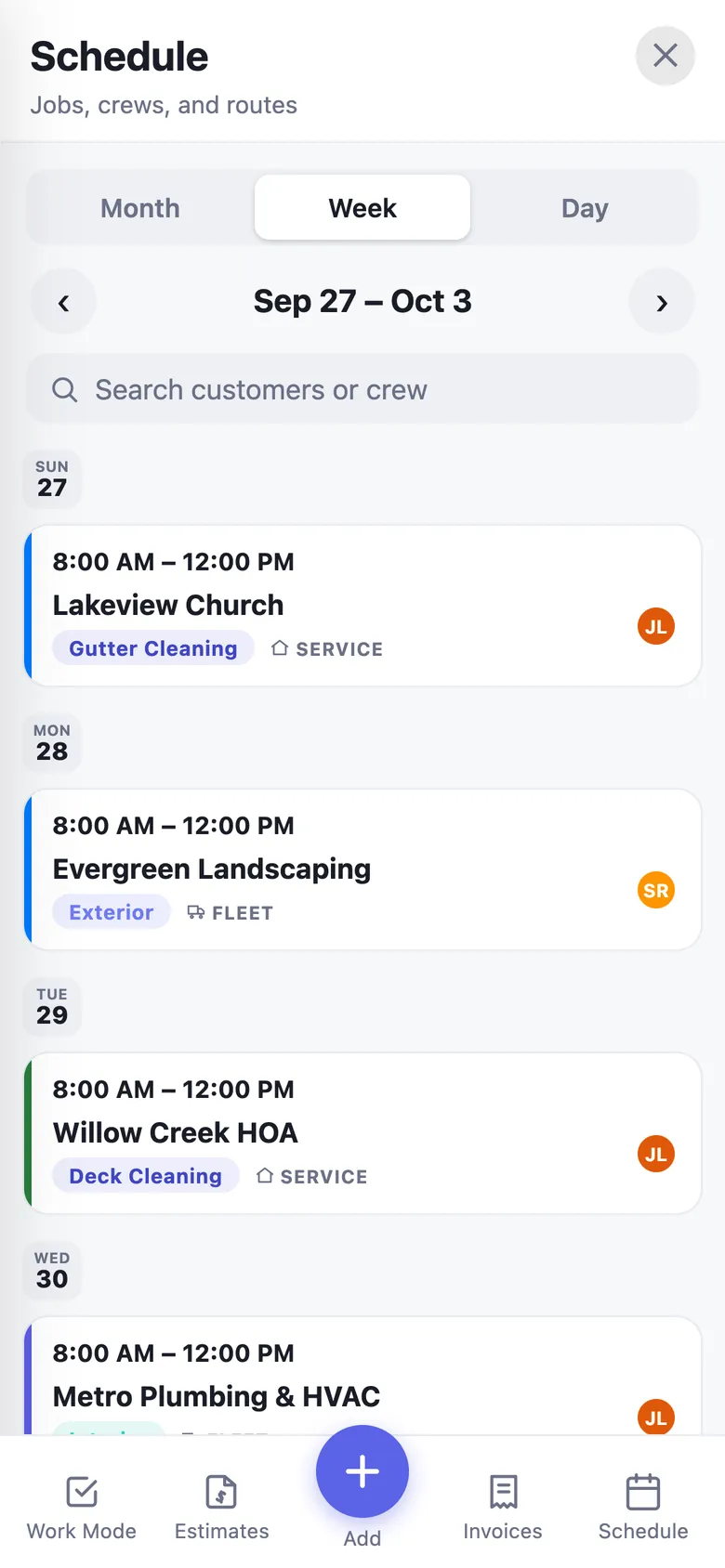
Three views

  • Month — a grid where each day shows colored job bars, plus an “Up next” agenda underneath
  • Week — a vertical day-by-day list, built for a phone screen rather than a squeezed seven-column grid
  • Day — a time-rail agenda of the day’s work

Every job card shows

  • A service chip in that service’s color, a Fleet or Service tag, and crew avatars for who’s assigned
  • Projected recurring visits as dashed cards, based on each fleet customer’s wash frequency

Working the schedule

  • Search by customer or by crew member
  • Job Overview sheet — tap a job for shift times, the job-site address with a Get Directions button, who’s assigned, and access notes; edit or mark done in one tap
  • Book a job from an estimate — accepted estimates get a Schedule button that books the work and links it back, so your “scheduled” numbers stay honest
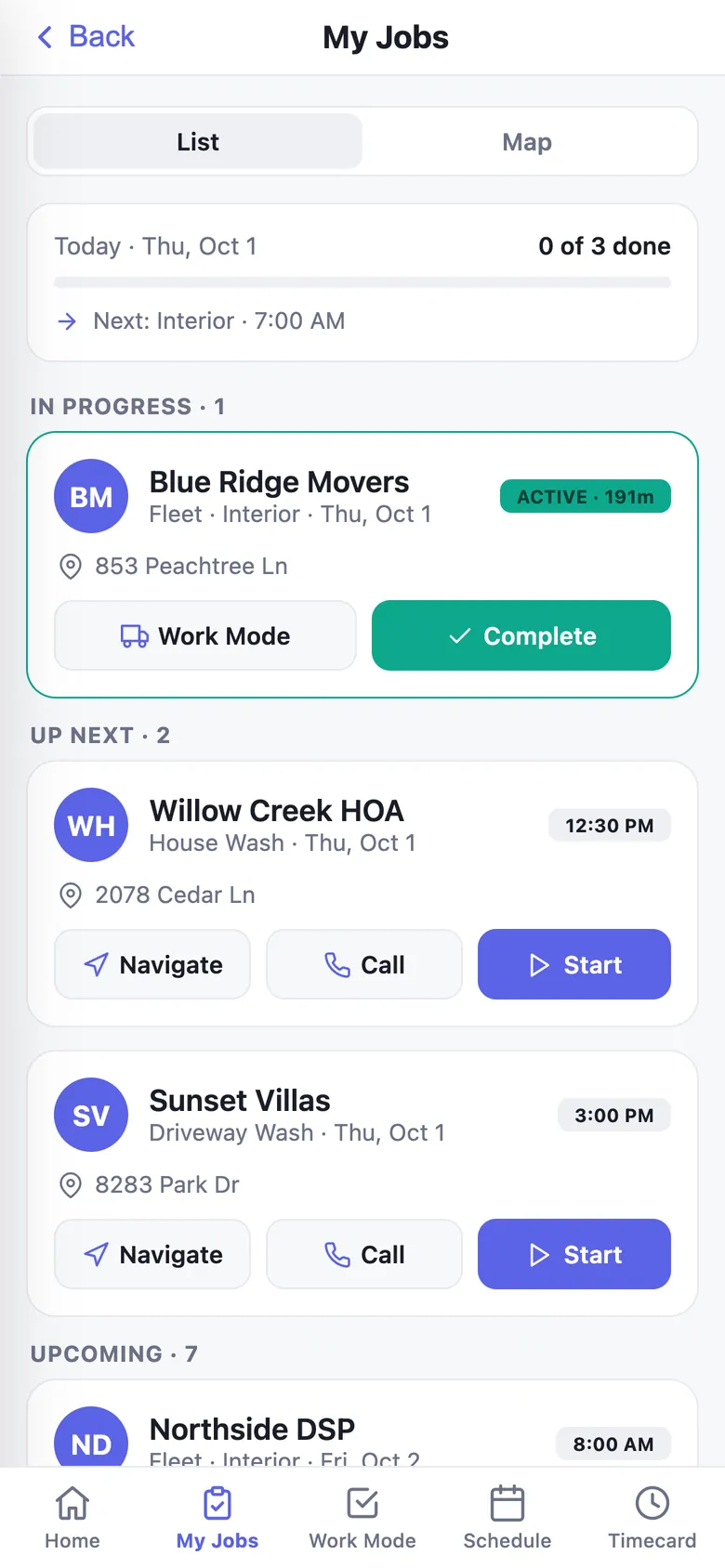
  • Crew see their own schedule only — auto-filtered to their assigned jobs, read-only, with no search box to browse other people’s work

Requests

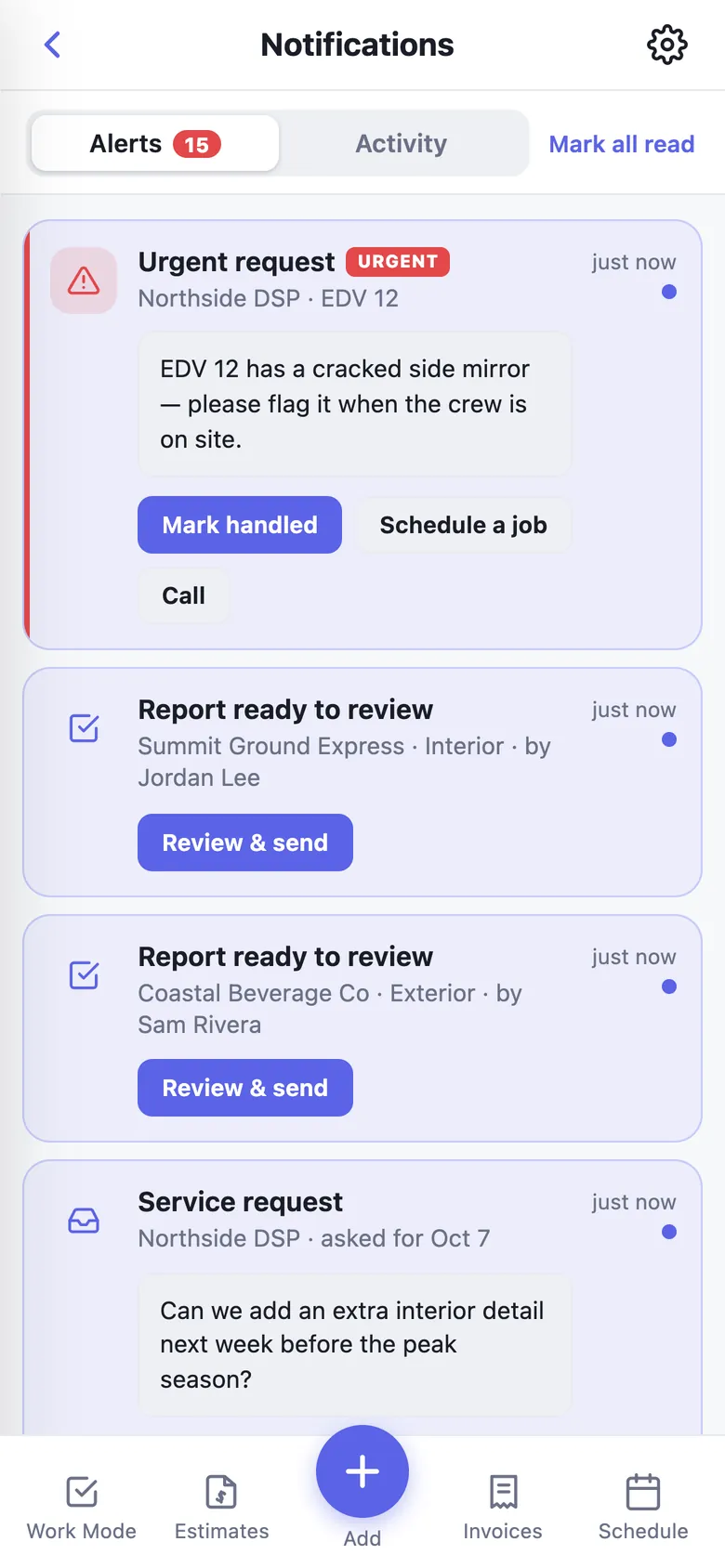
  • Customers can ask for service from their portal — a scheduling request, a question, or a flagged urgent request. They land in an inbox with urgent ones marked in red, push straight to your phone, and get marked handled when you’re done
Schedule — month view with colored job bars and Up Next agenda
06Sales

Estimates

Send a quote as a link. The customer opens it on their phone, signs, and accepts — no login, no PDF attachment, no phone tag.

Building the estimate

  • Line-item cards — service name, a multi-line description the customer sees, and a unit / quantity / rate row that totals itself. Or a flat amount
  • Pull from the Price Book to fill a line instantly; discount, convenience fee, and tax each as a percentage or dollar amount
  • Estimate date, valid-until date, terms, and a service agreement attached from your folder
  • Searchable customer picker — works fine with hundreds of customers

The customer’s experience

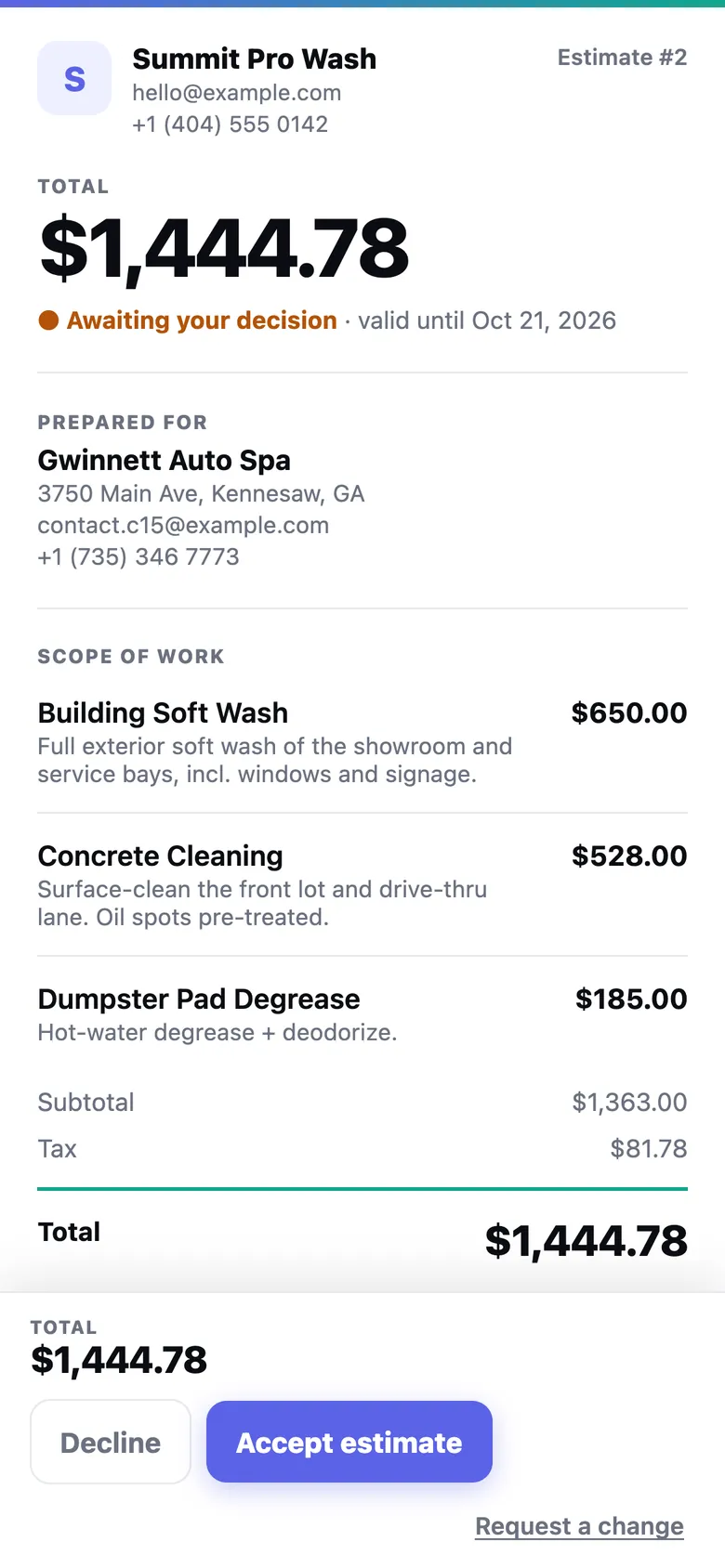
  • A clean, branded document page with your logo — the amount up front, the scope of work, your terms, and the agreement if attached
  • Accept, Decline, or Request a change with a note — plus a PDF download
  • E-signature on accept — they draw or type their name and tick consent; FleetPRO freezes a snapshot of exactly what they agreed to, hashes it, and records signature, timestamp, and IP

Managing your pipeline

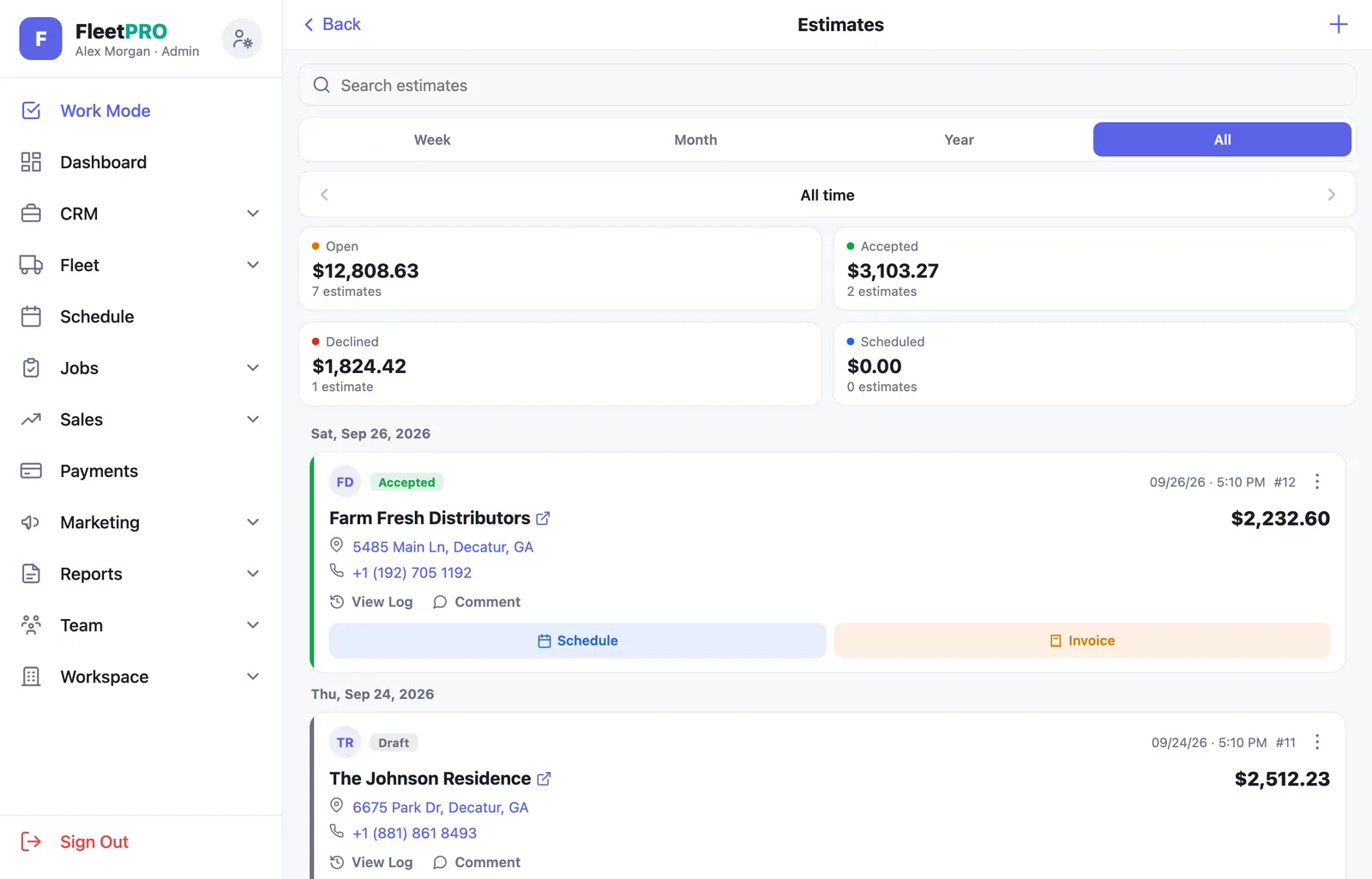
  • Tappable metric cards — Open, Accepted, Declined, and Scheduled, each with a count and dollar total
  • Status tracking — Draft, Sent, Viewed (you know when they opened it), then Accepted, Declined, or Changes Requested — with a per-estimate view log and internal comments
  • Send by email or text, copy the link, duplicate, edit, or convert to an invoice in one tap
usefleetpro.app — Estimates
Estimates pipeline with Open, Accepted, Declined, Scheduled metric cards
Public estimate page — what the customer sees

Left: your pipeline. Above: the branded public page your customer signs on.

07Sales

Invoicing

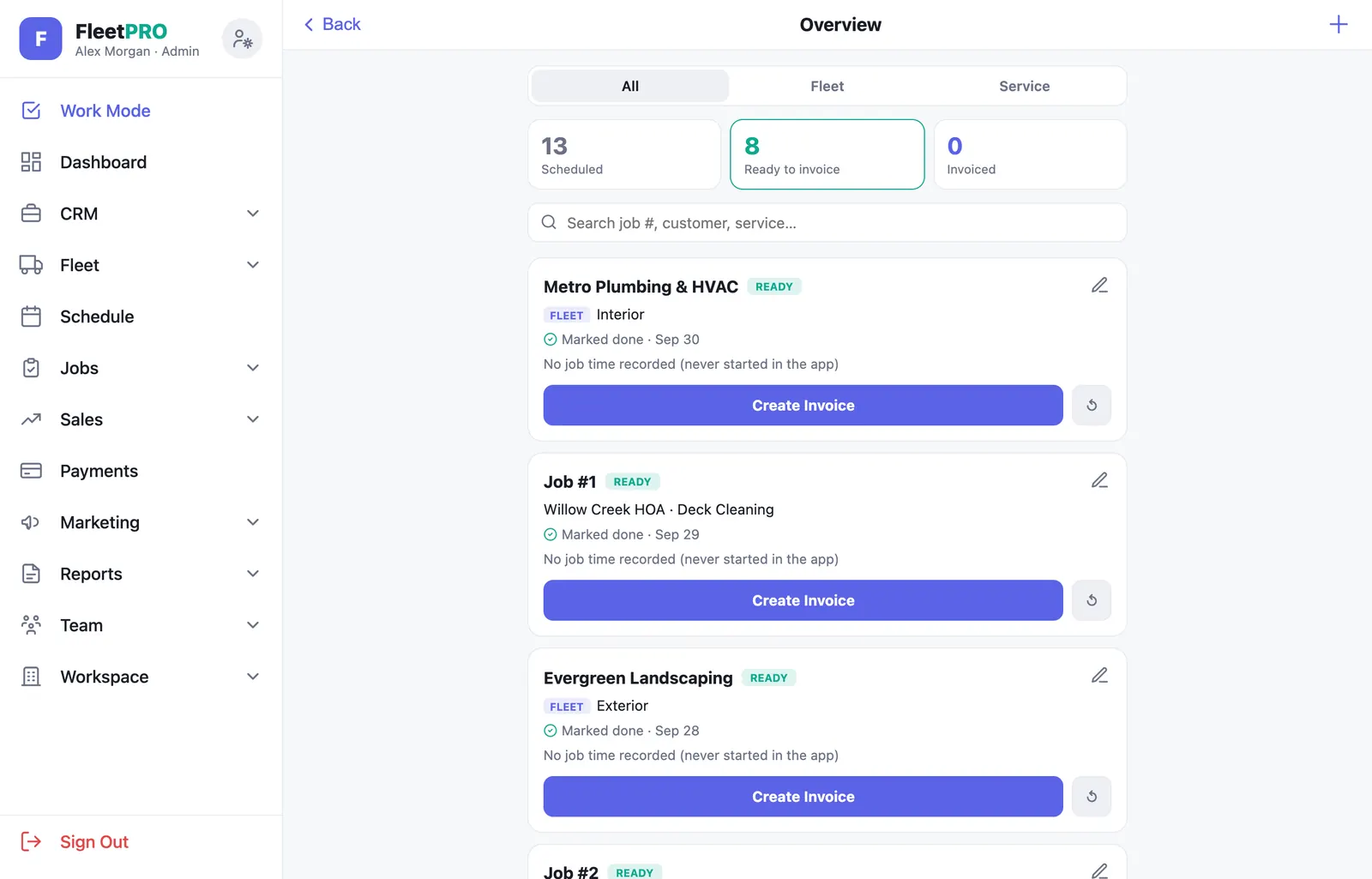
Two kinds of invoice — and the fleet one writes itself from the crew’s completed work.

Two kinds of invoice

  • Fleet invoice — FleetPRO looks at what the crew actually completed, counts the vehicles fully done for each service, prices each by its vehicle-group rate, adds the add-ons the crew ticked, and hands you a finished itemized invoice. Every line stays editable
  • Service invoice — generic line items for any other work
  • Math that never disagrees with itself — subtotal, then discount, then tax on the discounted amount, then the fee on top; components are rounded so they sum to the total exactly and reconcile in QuickBooks

Getting paid

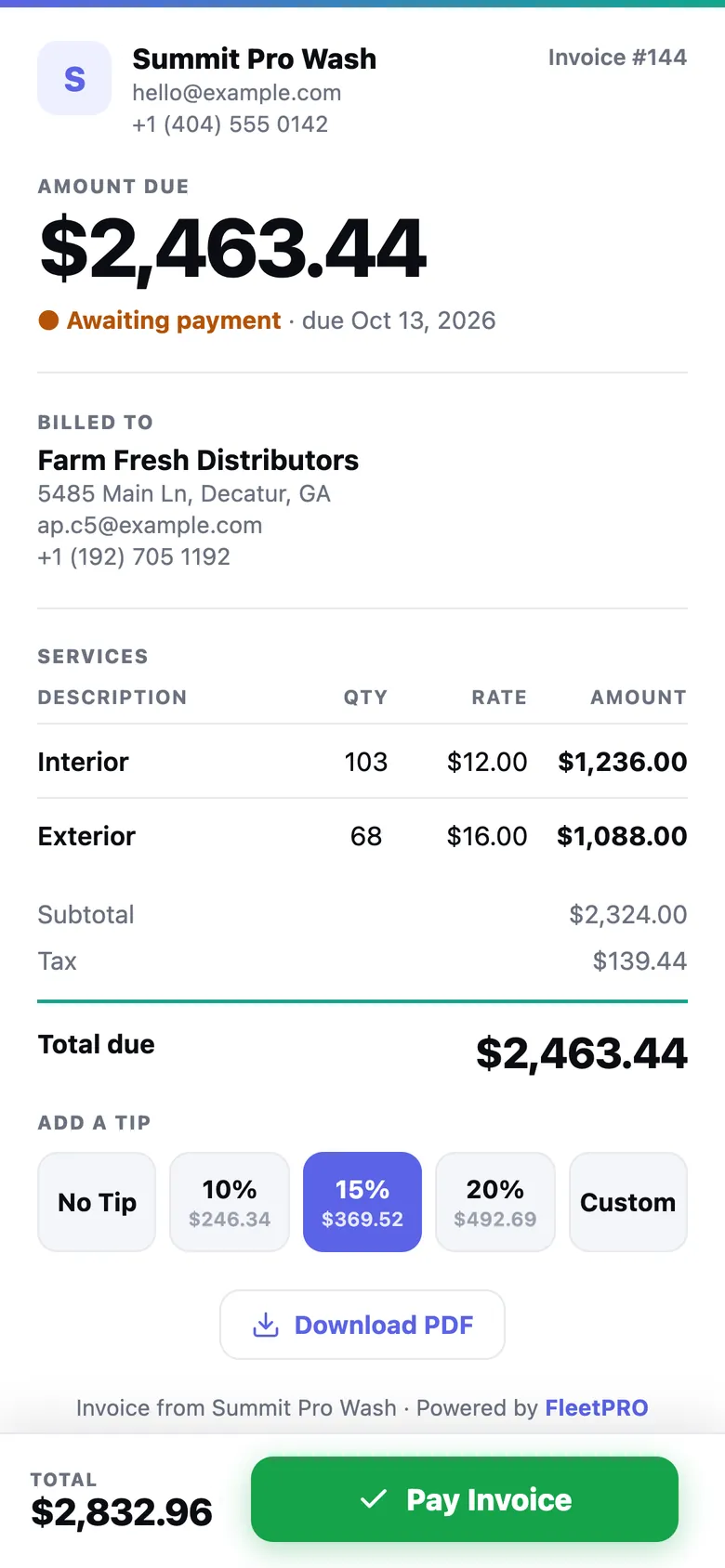
  • Every invoice gets a public payment link — a branded page with the amount, line items, and a Pay button, plus a tip prompt (10 / 15 / 20 / custom). The tip is 100% yours
  • Sequential invoice numbers, viewed tracking, due terms (upon receipt or net 30), send by email or text, and a branded PDF

Managing invoices

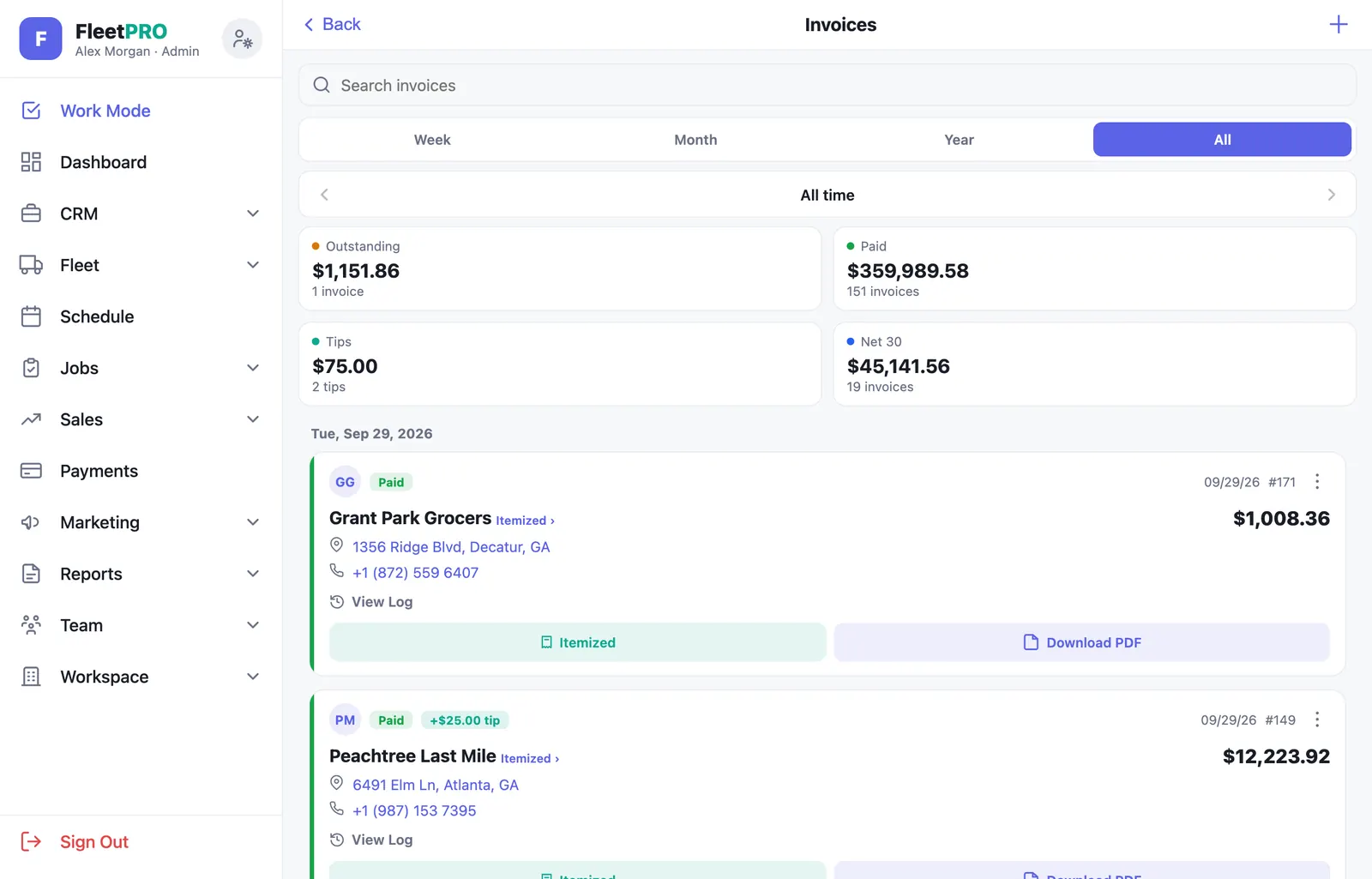
  • Metric cards — Outstanding, Paid, and Tips, each tappable to filter
  • Cash-basis accuracy — a paid invoice files under the month it was paid, not the month it was billed, so “Paid” means money actually collected in that period
  • Past-due badges that count the days, a per-invoice activity log, one-tap Send Reminder, and manual mark-paid for cash and check

QuickBooks export

  • A QuickBooks Online import CSV generated from your invoices — no API connection, no Intuit account link, no per-month integration fee
  • Paid-only and incremental — “Ready to export · N invoices · $X” only exports what you’ve collected since last time; discounts, tax, and fees become their own lines so the imported total matches what you billed. Full re-export available if an import ever goes wrong
usefleetpro.app — Invoices
Invoices — Outstanding, Paid, and Tips metric cards with rich invoice cards
08Payments

Getting Paid

Card payments, powered by Stripe, running live today.

How the money moves

  • Guided setup — Stripe’s hosted onboarding gets you accepting cards; the Payments screen shows your status and links to your own payout dashboard
  • Your customer pays the exact invoice total — no surcharge tacked on at checkout. The platform fee is 1% of the base amount, and tips pass through at 100%
  • Payouts to your bank on Stripe’s schedule, and invoices mark themselves paid automatically when the payment clears

Card on file & auto-pay

  • Auto-pay — customers save a card in their portal and new invoices charge automatically. Nothing to chase
  • Approve & pay — if they’d rather approve each invoice, it’s a single tap on the saved card. Or just the payment link, no saved card required
  • FleetPRO never stores card numbers — cards live with Stripe; FleetPRO only ever sees the brand and last four digits
Hosted payment page with tip selector and Pay Invoice button
09Reports

Completion Reports

The thing your customer actually judges you on: proof the work got done, in their inbox, with your name on it.

What goes in a report

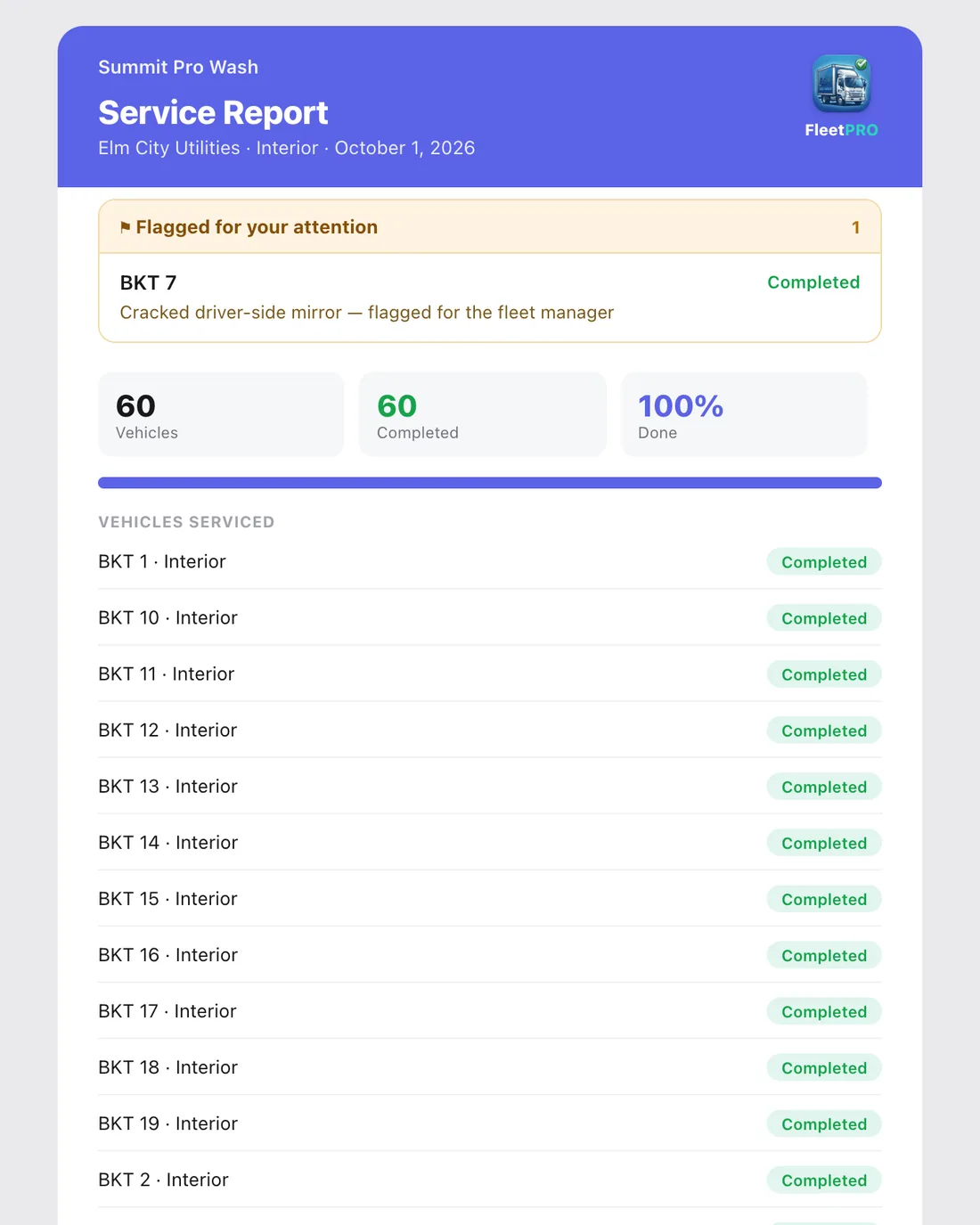
  • Every vehicle, its status, and its checklist; a completion percentage and count; crew notes per vehicle; before / after photos you choose; add-on services performed — under your logo, colors, title, and footer

Four templates STARTER+

  • Basic (light and clean — free on every plan), Classic (minimal with a completion ring), Spotlight (colored header band with metric tiles), and Grid (two-column vehicle status cards)
  • Live thumbnails — the picker renders each template with your actual branding, so you see what you’re choosing before you choose it

Branding & white-label PRO+

  • Reports carry a small FleetPRO watermark by default. On Pro and above you can turn it off entirely — the report is then 100% your brand, with no sign FleetPRO exists
  • Reports come from your business name, with replies going straight to your email

Report management

  • Pending Reports — crew submissions waiting on your review, with a service chip so you know which service each covers
  • Sent Reports — searchable and filterable by customer; tap to view the exact report the customer got, with tap-to-zoom photos
  • Completion Log PRO+ — an audit trail of who marked which vehicle complete, and when
usefleetpro.app — Report Settings
Report Settings — live-branded template picker and watermark toggle
usefleetpro.app — Pending Reports
Pending Reports — crew submissions awaiting admin review
10Marketing

Email & SMS Campaigns

Your customer list is an asset. This is the part of the platform that treats it like one.

Compose & audience

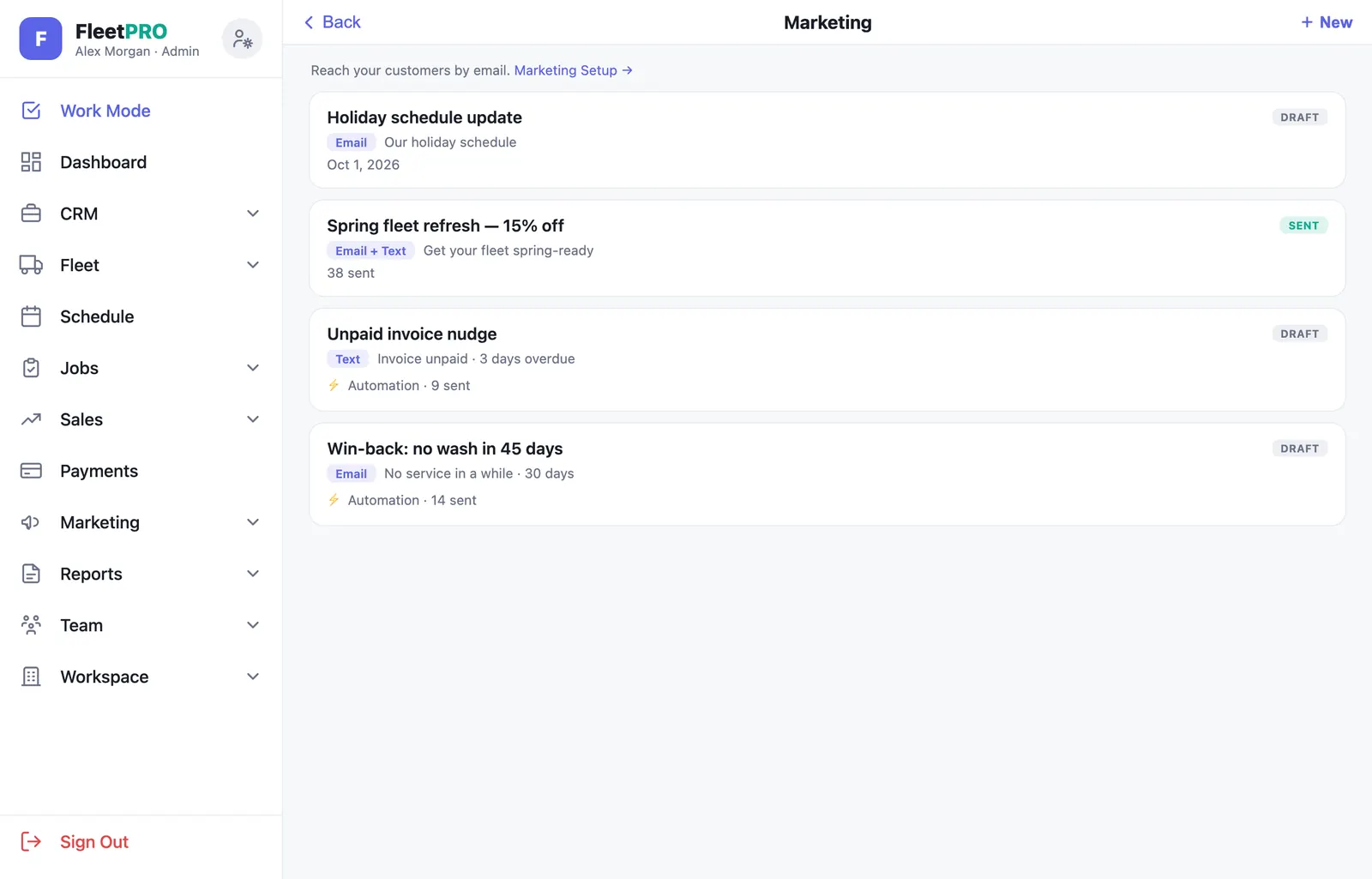
  • Email, SMS, or both in a single campaign, with reusable templates
  • Merge tags — first name, company, your business name, their balance due, their last service date
  • Live previews — the email as it’ll look, and the text in a phone bubble with a segment counter
  • Audience — everyone, a segment by customer type and tags, or a hand-picked list, with a live recipient count as you build it

Automations that make money while you’re on a job

  • Win-back — a customer hasn’t been washed in N days; Post-service — review requests and upsells right after a job completes
  • Stale estimate — they viewed your quote and didn’t accept; Unpaid invoice — N days overdue; Seasonal — a date each year
  • Each automation fires once per customer per event, keeps running, accumulates lifetime stats, and can be paused or resumed any time

Compliance, handled

  • One-click unsubscribe on every email plus your physical address, as the law requires; “Reply STOP” appended to every text and honored automatically
  • A suppression list checked before every single send, and customers can opt out themselves from their portal
  • Your sender identity — verify your own domain and campaigns go out from your address; until then they send from a shared sender
usefleetpro.app — New Campaign
Campaign composer — channel, audience, merge tags, send now / schedule / automate
11Team

Team & Timecards

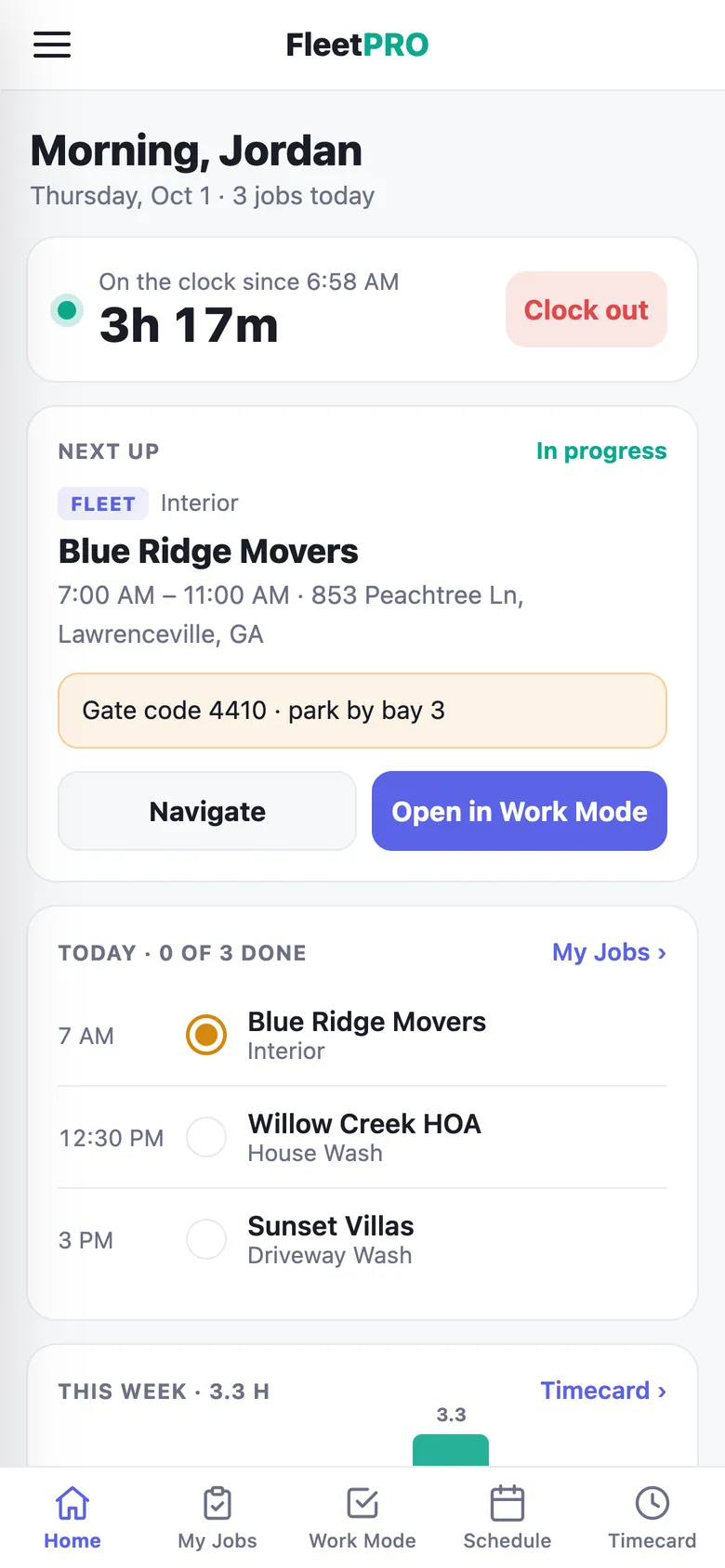
Invite someone by email and they’re working the same day. Then know exactly when — and where — they clocked in.

Timecards PRO+ — crew clock in from their phone. But not from anywhere.

  • They must be scheduled today — no shift, no clock-in
  • They must be on time — the window opens a configurable number of minutes before their shift and closes when it ends
  • They must be on site — a GPS geofence around the customer’s job-site pin, with a radius you set in feet
  • They always know why — a banner tells them the exact state: not scheduled, opens at 7:50, on-site to clock in, or ended. And clocking out is never blocked — nobody gets trapped on the clock

The admin view

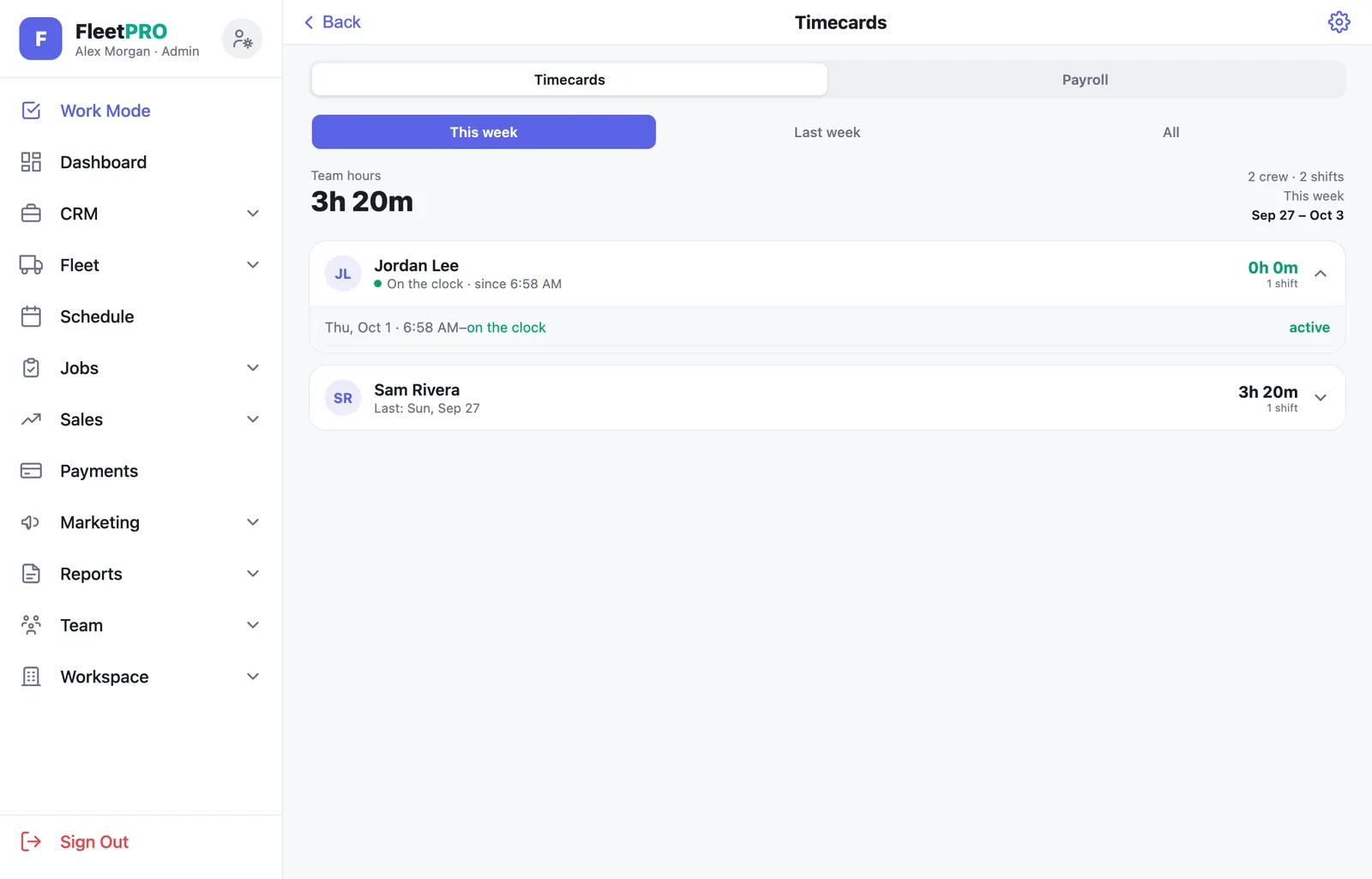
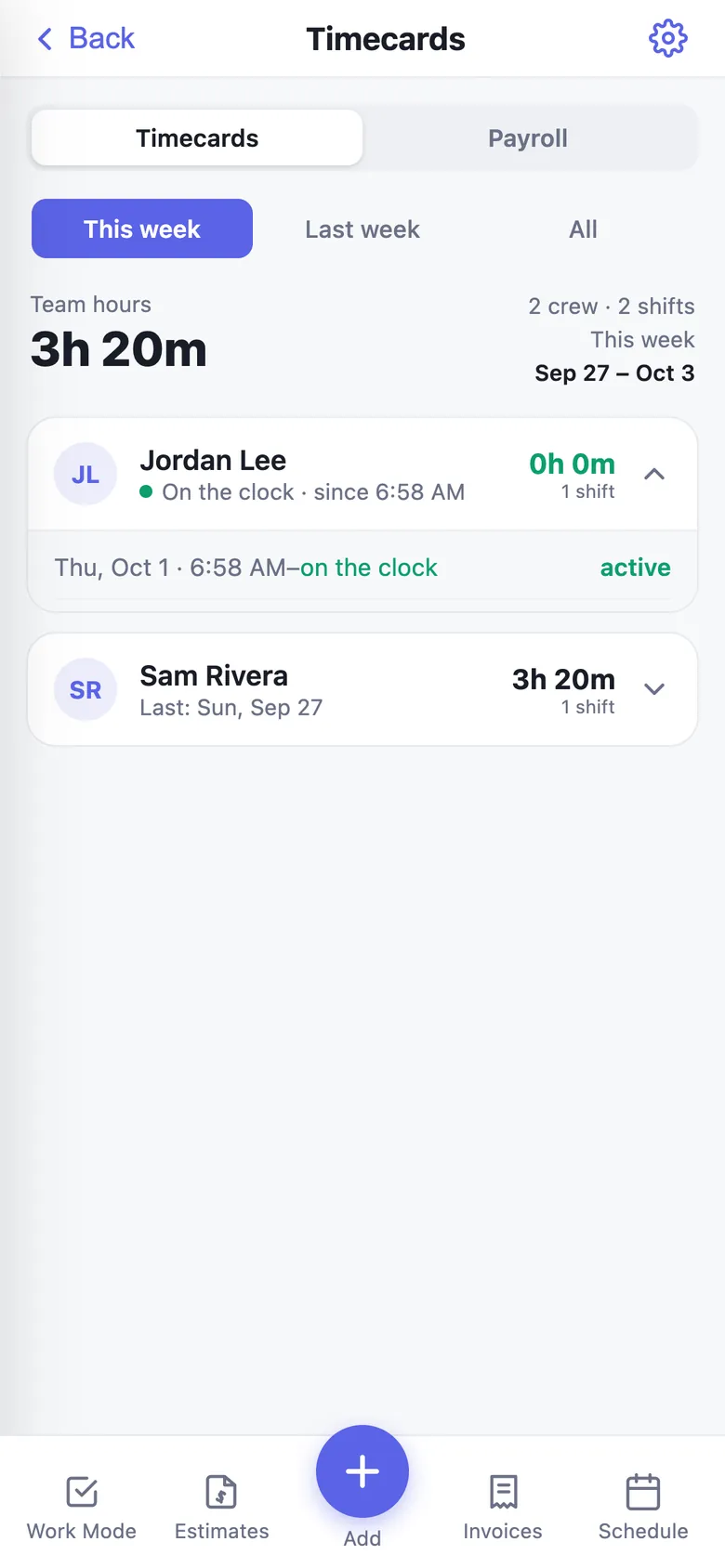
  • Team hours summary plus per-crew cards — avatar, total hours, shift count, tap to expand into individual punches
  • This period / Last period / All, labeled by your actual pay cadence — weekly or biweekly with an anchor date
  • Payroll-accurate mid-shift — open punches show “on the clock” but contribute zero to totals; crew still clocked in sort to the top
  • Timecard Settings — geofence radius, early clock-in window, week start day, and pay periods, all yours to configure
Crew timecard — on the clock with today and weekly totals
12Your Customers

The Customer Portal

Your customers get their own login. This is the feature that makes you look like a different class of vendor than whoever they used before.

Their home screen

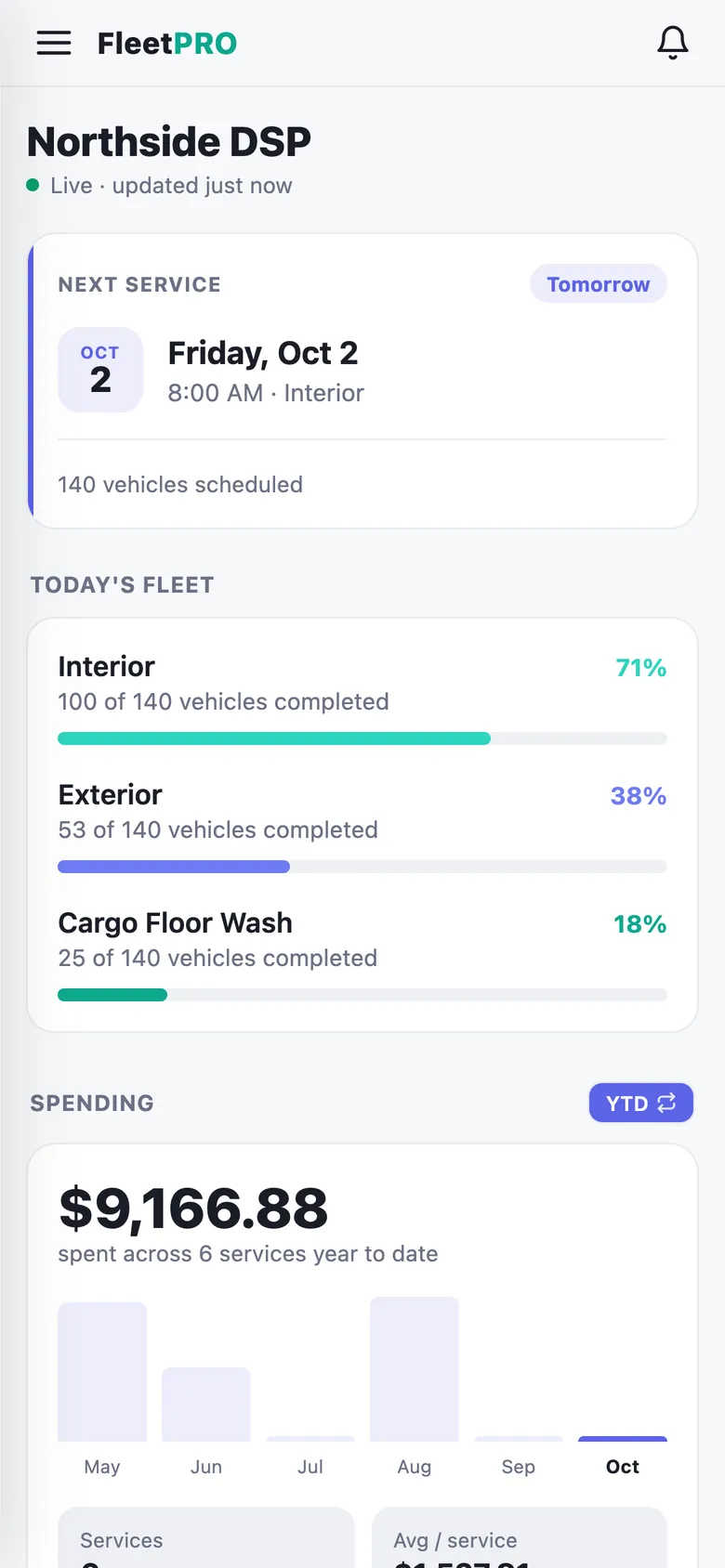
  • Next service — a countdown to their next scheduled visit, plus what’s coming after that
  • Today’s fleet — a live progress bar per service. They can watch the wash happen
  • Service photos — before/afters and other shots from the last 90 days, and Spending — a chart by year or month with services count and average ticket
  • Invoices — everything unpaid regardless of date, each with a Pay button, plus Make a request and Documents awaiting signature

My Fleet & history

  • Every vehicle they own — tap one for its VIN, when it was last serviced, a service-history timeline, and that vehicle’s photos
  • Every completion report you’ve ever sent them, viewable in the app with tap-to-zoom photos

Billing & account

  • Save a card on file, turn on auto-pay, or approve each invoice with one tap — with pending payments in one place
  • Their account, their way — name, phone, password, two-step verification, seven notification toggles, light/dark theme, and your contact details with Call / Text / Email buttons
  • Scoped to them, enforced at the database — a customer login can only ever read that customer’s own data. It isn’t a filter in the app that could be worked around
Customer portal — live fleet progress, spending, invoices
13Notifications

Push Notifications

Instant, not on a timer. When something happens, your phone knows in seconds — and every alert is a toggle.

What you get told

Reports & crew
Report ready for reviewDay completeCrew clocked in/outMissed shiftCrew flagged a photo or note
Sales & payments
Estimate viewedEstimate acceptedEstimate declinedInvoice viewedInvoice paidCustomer left a tip
Money & customers
Invoice overdueNew userService requestUrgent request
Digests
Weekly summary

What your customers get told

Each with its own toggle on their side
Service scheduledTheir fleet is readyProgress updateNew invoiceInvoice due soonInvoice due todayPending approvalPayment receipt

Notification center

  • A bell on the dashboard with an unread badge — pending reports, sent reports, overdue invoices, and open requests, each tapping through to the screen that handles it
Notification center — reports, urgent requests, overdue invoices
14Integrations

What It Connects To

The connections that matter, without integration fees.

Stripe

Card payments from your customers, straight to your bank. Guided onboarding, your own payout dashboard, card-on-file and auto-pay, tips.

QuickBooks Online

Paid-only, incremental CSV export that reconciles exactly. No Intuit connection or integration fee required.

Apple / iOS

Native iPhone app with camera, GPS, push notifications, camera-roll saving, and in-app subscription management.

Mapbox

Address autocomplete and geocoding with real US residential and new-construction coverage, plus the job-site maps.

Email delivery

Reports, estimates, invoices, invites, and campaigns — sent from your business name, and from your own verified domain if you set one up.

Any browser

The web app runs on desktop, tablet, or phone — the iPhone app is for the crew in the field. Same login, same data, real time.

The iPhone app

  • Camera for photos, Unit ID scanning, and QR scanning
  • GPS for the timecard geofence
  • Instant push notifications
  • Camera-roll saving so wash photos are backed up to the phone
  • In-app subscriptions through Apple
15Trust

Security & Data Protection

Access control, backups, and records that stand up — enforced at the database, not in the app.

Access control

  • Three roles — admin, crew, and customer — each seeing only what they should
  • Enforced at the database, not in the app — the rules separating your business from every other business on the platform, and your customers from each other, live in the database itself. There’s no app-layer filter to slip past
  • Invite-only — crew and customers can’t sign themselves up, and nobody can promote themselves — the database blocks any attempt to change your own role or move to another business

Accounts

  • Password requirements enforced server-side — minimum length with mixed case, digits, and symbols — plus password reset by email
  • Two-step verification for every user on every role, and a one-time security prompt after login that walks users through strengthening their account

Your data

  • Photos are private — served through short-lived signed links, not public URLs anyone could guess — and backed up on write to a second location the app has no permission to delete from
  • Completion logging is append-only — an audit trail that can’t be rewritten — and e-signatures are recorded properly: a frozen snapshot, a content hash, the signer’s IP and timestamp
  • Card numbers never touch FleetPRO — Stripe holds them — and subscription status is locked at the database, uneditable from the app by anyone on any plan
  • Export your data any time — customers, invoices, timecards, pricing, and the QuickBooks export, all as CSV
Your company’s workspaceEvery record tagged to your business — invisible to every other tenant
Row-level securityDatabase-enforced rules decide who can read or write each row
Roles: admin · crew · customerEach login sees only what its role should — enforced below the app

Data is encrypted in transit and at rest, in a dedicated PostgreSQL database on enterprise cloud infrastructure.

16Plans

Plans & Pricing

Free to start, and yearly is three months free — about 25% off the monthly rate.

Plan
Monthly · Yearly · Customers · Seats
Free
$0 · $0 · 3 customers · 1 seat — try it out
Starter
$29.99 · $269.99/yr · 5 customers · 3 seats — small crews
Pro
$79.99 · $719.99/yr · 25 customers · 15 seats — most popular
Business
$149.99 · $1,349.99/yr · Unlimited — high-volume fleets

Card payments carry a 1% platform fee on the base amount, on every plan — tips are never charged a fee. Standard Stripe processing rates apply and come out of your payout. Pay by card on the web or through Apple in the iPhone app; upgrade, downgrade, or cancel any time.

See the Full Feature Matrix Start Free — No Card Needed

Everything you just read is live.

This isn’t a roadmap — every feature on this page is built, deployed, and running in production today. See it for yourself.